Clean Up Dataverse File Columns with Power Automate
Learn how to delete and clean up Dataverse file column data using Power Automate. This step-by-step guide shows how to safely remove file attachments and optimize storage in Microsoft Dataverse.

A few weeks after delivering a Power Automate process that generates and stores PDFs in a Dataverse file column, my client asked for something simple:
“Can we make this process run on demand?”
That’s when I hit an unexpected limitation:
You cannot clear a Dataverse File column using “Update a row”.
I assumed it would be straightforward. But when I tried to use the Update a Row action, the file column didn’t even appear 😐
NOTE
TL;DR:
If you need to clear a Dataverse File column using Power Automate, you cannot do it with Update a row.
Instead:
- Use Perform an unbound action
- Select the DeleteFile action
- Pass the FileId of the file stored in the column
Dataverse stores file content in a separate File record. Deleting that record using DeleteFile properly removes the file from the column.
Things I tried
First, I attempted to use Update a Row and set the file column to null.
That doesn’t work — because the File column does not appear in the action.
⚠️ Note: For Image columns, clearing with
nulldoes work using Update a Row. This limitation applies specifically to File columns.
Next, I tried using the Upload a file or an image action and passed null as content:
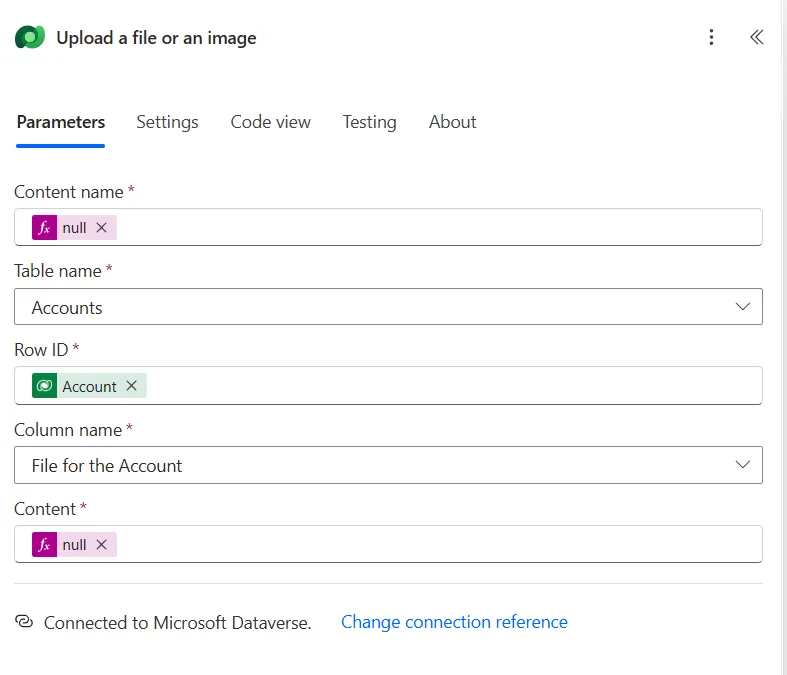
Interestingly, this creates a blank file instead of deleting it:
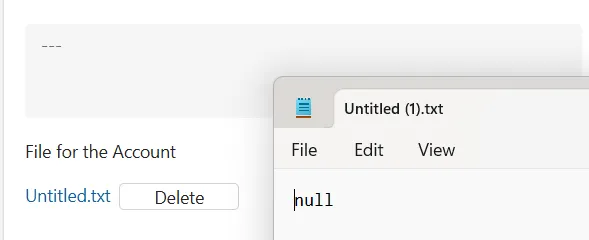
It works as a workaround — but it does not actually remove the file. It simply replaces it with an empty one.
Not good enough.
Why This Happens
When you upload a file into a Dataverse File column:
- Dataverse creates a separate File record behind the scenes
- The File column does not directly store the binary content
- Instead, it stores a reference (
FileId) to that File record
That’s why the column doesn’t appear in Update a row for clearing with null.
To properly remove the file, you must delete the underlying File record.
The Solution
My instinct told me:
“If this exists in Dataverse, there must be an action for it.”
In Power Automate, that usually means checking:
- Perform a bound action
- Perform an unbound action
Since File columns are generic and not tied to a specific table type, this had to be an unbound action.
After scrolling through the list…
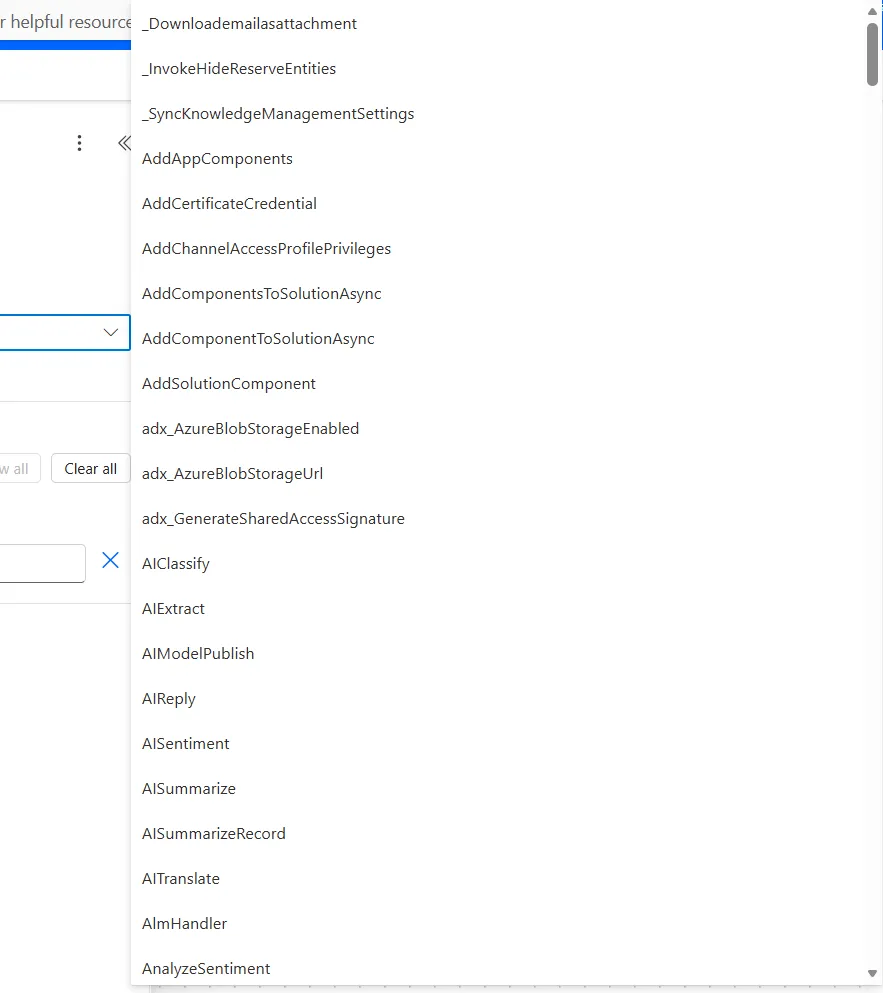
I found exactly what I needed:
DeleteFile
When selecting it, the action requires one parameter:
FileId
And that’s the key insight.
When a file is stored in a File column, the record exposes its FileId — which you can retrieve dynamically.
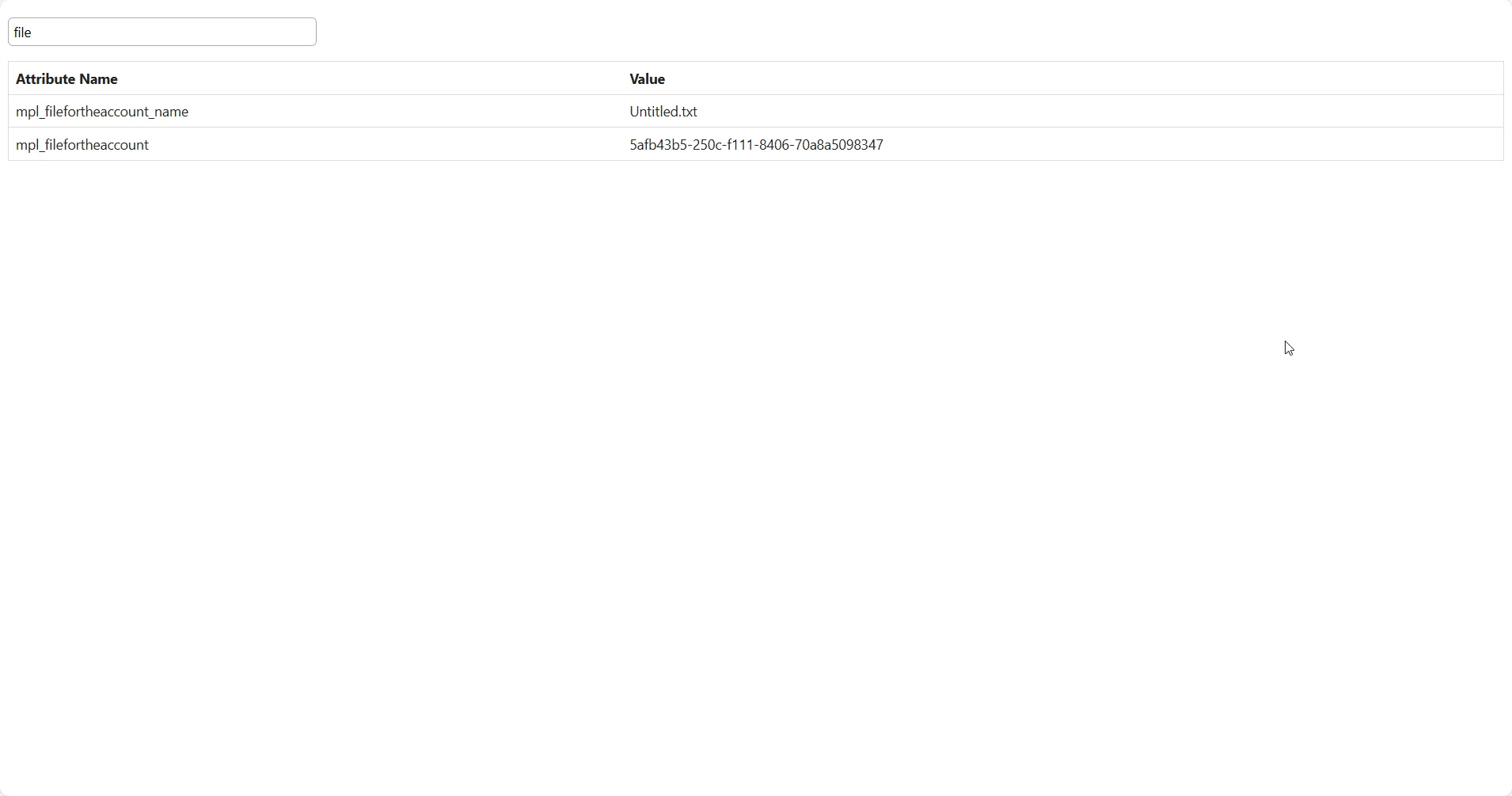
If you pass that FileId into the DeleteFile action — the file is completely removed.
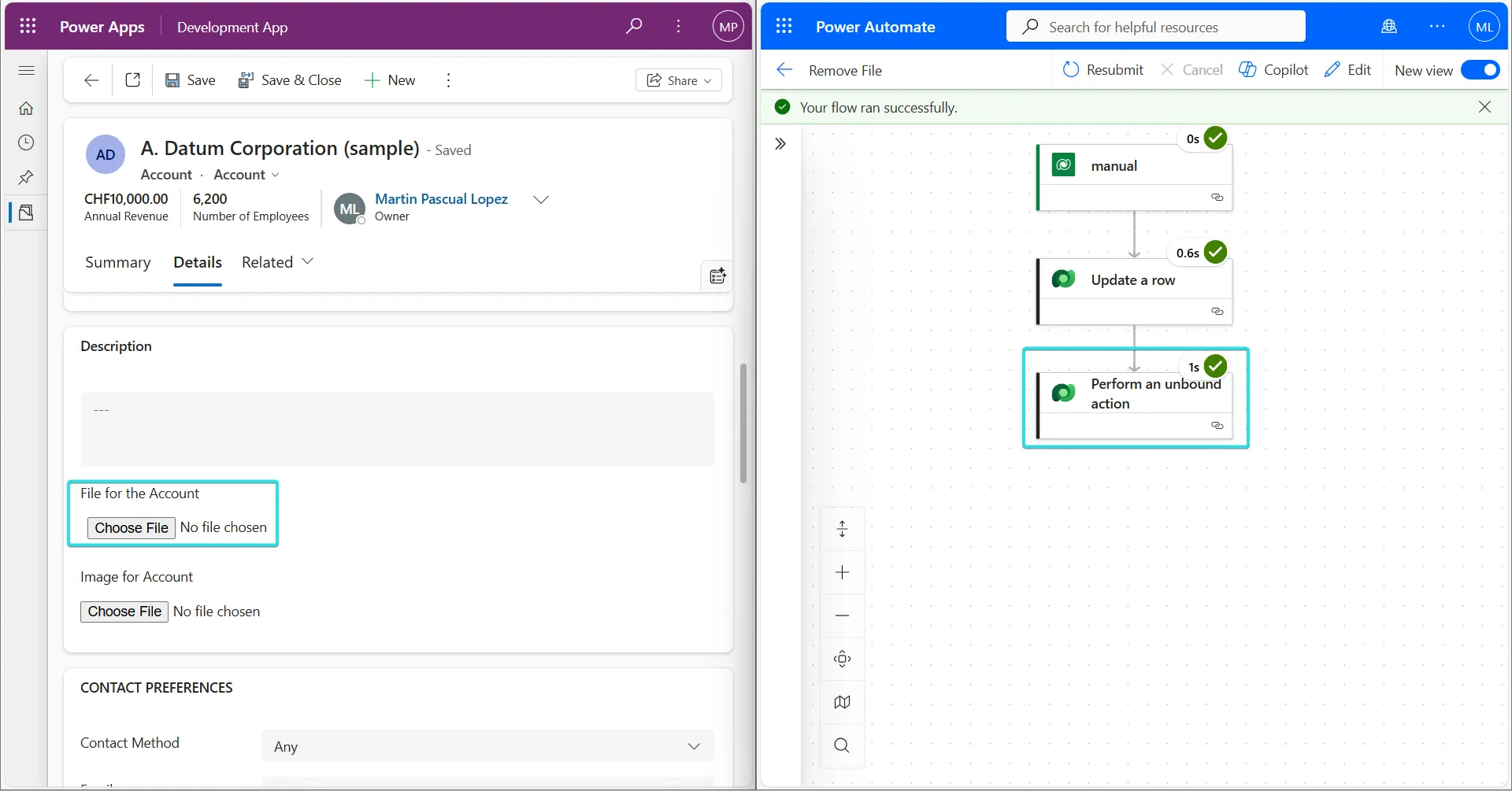
Voilà 😎
Step-by-Step: Deleting a Dataverse File Column
1️⃣ Add Perform an unbound action
2️⃣ Select action: DeleteFile
3️⃣ In the FileId parameter, pass the FileId from your record
4️⃣ Save and test
Once executed, the file content is fully removed from the column.
Important Notes
- This applies to File columns, not Image columns.
- You must have proper permissions to delete files.
- Many advanced Dataverse capabilities are exposed via unbound actions — even if they’re not available in standard connector actions.
Conclusion
If you ever feel stuck because something isn’t available in a standard Dataverse connector action, check the bound and unbound actions.
Very often, the platform already provides a proper way to handle it — you just need to look a little deeper.
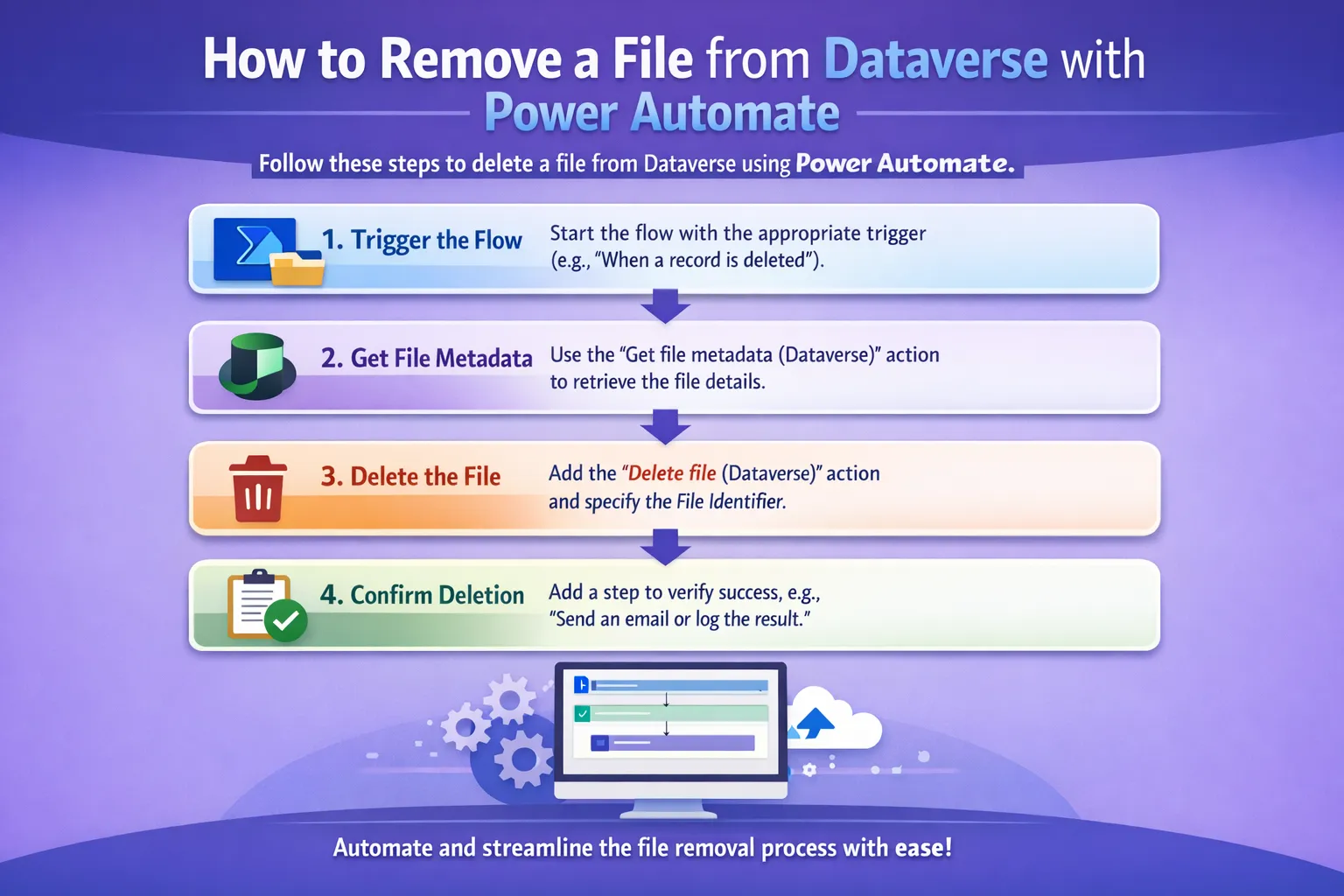
While preparing this article, I tried generating an AI image to illustrate the problem. Ironically, the AI generated something very close to the solution 😅
And I think this is important:
Even if someone has written about this before, your explanation, your scenario, and your experience will help someone in a different way.
If this article saves someone 30 minutes of frustration — it’s worth publishing.
👉 If you need help with this kind of stuff, feel free to send me an Email, . I’ll gladly try to help 😉
One useful CI-J idea, every other Friday.
Sign up for my newsletter and be the first to know about new blog articles, Customer Insights discoveries, and more.